
There are two ways I like to collect links from websites when I’m not using Python.
Typically I use scripts, but to write those I have to be familiar with the process. If you’re not familiar with software development, then there are some free tools. I’m covering one of them here, and have a second article for the other.
The 2 easiest methods for gathering links in bulk
- Chrome’s built-in developer tools feature – which I cover here
- The SEOQuake browser plug-ins
- [Placeholder for Python script later]
how to use chrome developer tools to scrape links
Step 1 – Go to the top album for the content
- Go to the infringing website containing your leaks or deepfakes by doing a Google search, and make sure you are at the top of the album containing your content, not just a single image.
- Scroll until you reach the last image, but do not click anything. Just use the wheel on your mouse to get to the bottom.
Step 2 – Open developer tools
- Right click somewhere on the white space of the screen.
- Do this QUICKLY after landing on the site to avoid the re-directs and popups. Click inspect.
- If it’s one of those annoying sites with giant unavoidable popups or it re-directs you when you left click, go into the hamburger menu in Chrome, and click “More Tools” and then “Developer Tools”
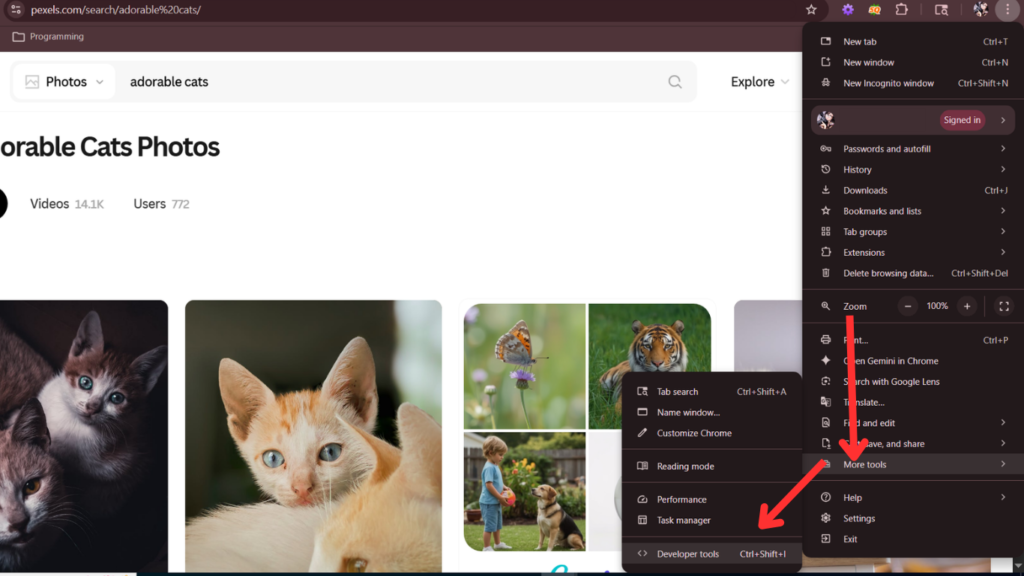
Step 3 – Select the “Network” tab
- Developer tools should be displayed at the bottom or side of your screen depending on how you have your browser configured.
- Select the tab that says “Network” – 3rd row from the top.
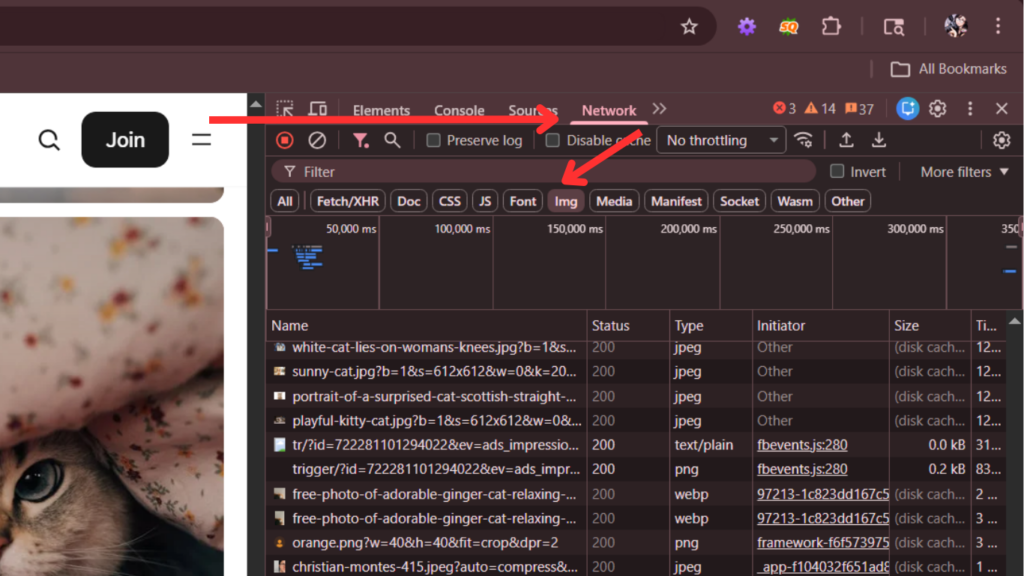
Step 4 – Filter the list so it only shows pictures or videos
On the left you’ll see a really long list – on the 4th row below where you found Network, choose “Img” so that the only thing displayed is pictures. You can also do this for “Media” which should display any embedded videos.
Step 5 – Copy all of the links
- With the network console open, use the wheel on your mouse to scroll down to the bottom of the album. On some sites they will not all appear unless you do this. You should see more links populate as you scroll.
- Right click any of the links you see and click copy
- Choose “COPY ALL URLs.”
- You can reset the link list by refreshing the page if you accidentally scroll too fast or the list is already huge.

Step 6 – Clean up your spreadsheet links
Paste the URLs into Excel or Google Sheets. You will need to clean it up some and look for the lines that belong specifically to you.
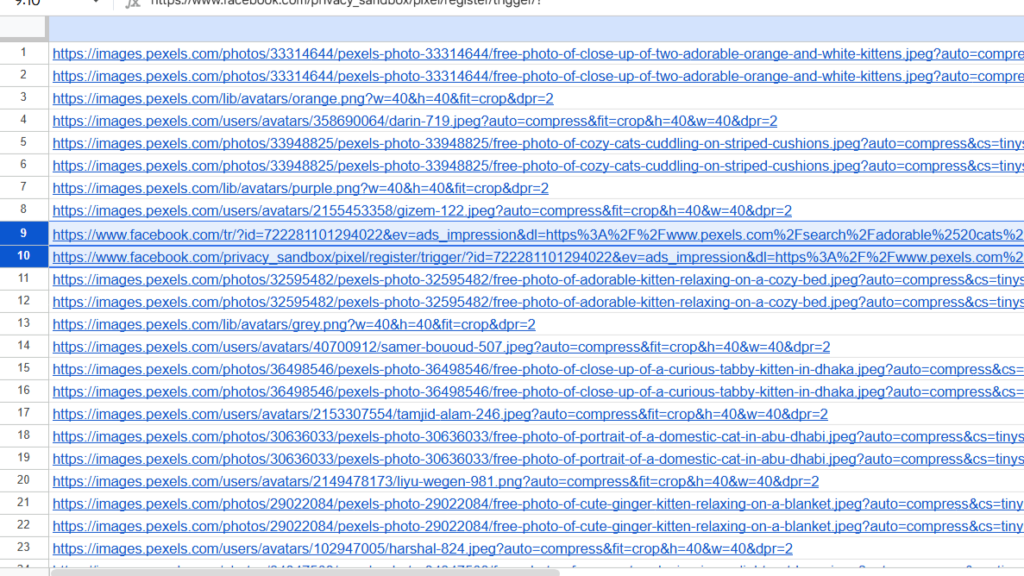
In the example below (not from a leak site), Facebook shows up for example.
See STEP 5 in THE SEOQUAKE METHOD for more about spreadsheet cleanup.
And that’s it! I hope this guide helped save you some time. I’ll be adding some advanced instructions for users comfortable with running scripts as well.

